 CC / NRPN Page (Settings Dialog)
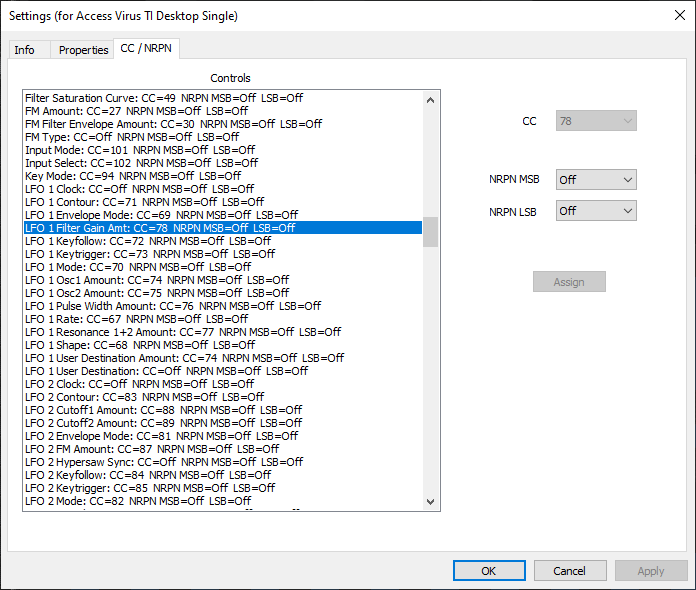
This page is only displayed when the Settings dialog is opened from a parameter editor window as the contents of the page requires information from the editor.
The page serves two purposes. It lists all of the CC and NRPN assignments for the current editor and it allows new CC and NRPN assignments to be made.
For information on how Midi Quest editors can be remote controlled by CC and NRPN messages, click here.
The Controls portion of the page lists all of the controls found in the editor, one line per control Each line includes the following information:
1/ The name of the control (the same name that appears in the pop-up when a control is editing a parameter).
2/ the CC number assigned to the control or "Off" if there is no assignment
3/ the NRPN number assigned to the control or "Off" if there is no assignment
Since all editor controls are listed, it is possible to get a fast overview of the CC and NRPN assignments currently made in the editor.
It is also possible to assign a CC and or NRPN message to any control. This allows a controller keyboard to edit a Midi Quest editor which, in turn, edits the instrument.
To edit the CC assignment of a control,
1/ Select the control to edit
2/ On the right hand side of the page, the CC, NRPN MSB, and NRPN LSB assigned to the editor control are displayed as active values
3/ To clear a CC assignment, set the CC value to "Off" and press the Assign button
4/ To assign a new CC value, click on the drop down menu to the right of "CC" and select the desired value (note: only available CC values are listed)
5/ Once a value is selected, press the Assign button
To edit the NRPN assignment of a control,
1/ Select the control to edit
2/ On the right hand side of the page, the CC, NRPN MSB, and NRPN LSB assigned to the editor control are displayed as active values
3/ To clear an NRPN assignment, set the NRPN LSB and MSB values to "Off" and press the Assign button
4/ To assign a new NRPN value, click on the drop down menus to the right of "NRPN MSB" and "NRPN LSB" and select the desired values
5/ Once a value is selected, press the Assign button
6/ If the selected NRPN value is already assigned, the new assignment will fail.
All CC and NRPN value assignments are permanent. Pressing Cancel to exit the Settings dialog will have no effect on the assignments.