 Manually Creating Plug-in Files
On the Macintosh, there is an application that interferes with the closing of dialogs when used in the plug-in environment. Unfortunately, Sound Quest has not been able to determine the application which causes this problem but it affects far fewer that 1% of people using plug-ins. As an issue, the Settings dialog, which is used to assign MIDI ports and channels, will not close after being opened. Since the dialog will not close, changes made in the dialog are never saved.
It is possible to bypass this issue by manually creating the file instead of using the Settings dialog. The file is titled "Plugins.ini" and should be found in the Plugins folder in the Midi Quest section of the documents folder. Specifically, it is found at
~/Documents/Sound Quest/MidiQuestPro/Plugins/Plugins.ini
on the hard drive.
If you would like to receive a sample of this file, please contact Sound Quest support.
To view the file, open it in any ASCII editor. It is simple text data and looks like this:
[Korg M1]
PortIn=1
PortInName=UM-550 MIDI 2
PortOut=2
PortOutName=UM-550 MIDI 3
CommCh=0
MidiCh=0
[Yamaha DX7]
PortIn=1
PortInName=UM-550 MIDI 2
PortOut=2
PortOutName=UM-550 MIDI 3
CommCh=0
MidiCh=0
In this example there are two instruments with a block of information for each instrument. If there are 5 instrument, create 5 blocks. All of the information required can be collected from within Midi Quest so have the software running. The first line is the name of the instrument exactly as it is displayed in Midi Quest in the Studio window. It is wrapped in square brackets. For example: "Yamaha DX7". You can also find the name in the Settings dialog, immediately after "Settings (for " in the title line. The remainder of the information can be collected from the Settings dialog. Select the instrument in the Studio window and press the "Settings" button in the upper left.
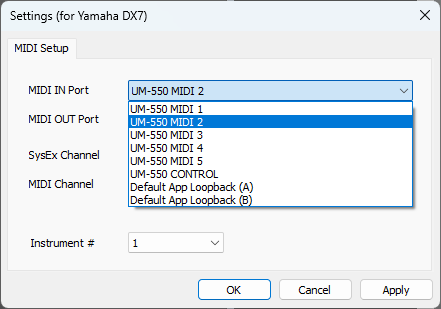
PortIn is the index of the selected MIDI IN port in the list. An index means that the first line is "0", the second line is "1", and so on. In this case, the selected port is "UM-550 MIDI 2" and it is the the second line or index 1. The line is written:
PortIn=1
PortInName is the name of the MIDI IN port being used for the instrument. In this case it is the UM-550 MIDI 2 port. The line is written:
PortInName=UM-550 MIDI 2
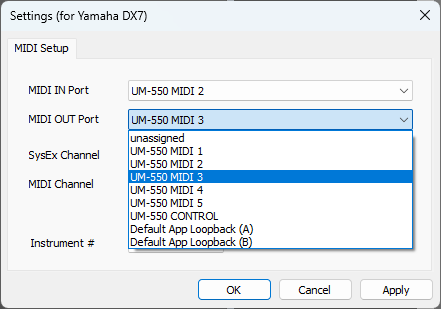
PortOut is the index of the selected MIDI OUT port in the list. An index means that the first line is "0", the second line is "1", and so on. In this case, the selected port is "UM-550 MIDI 3" and it is the the third line or index 2. The line is written:
PortOut=2
PortOutName is the name of the MIDI OUT port being used for the instrument. In this case it is the UM-550 MIDI 3 port. The line is written:
PortOutName=UM-550 MIDI 3
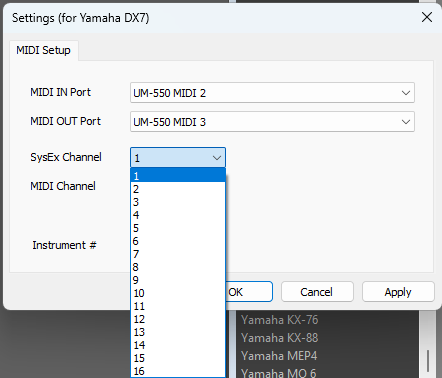
CommCh is the SysEx channel used by the device. The value is stored by index in the list. In this example, the DX7 uses Device IDs and the first value is 1. If that is the assignment, the value would be "0" because the line index is 0. The line is written:
CommCh=0
The final item is the basic MIDI channel assigned to the device. Again the value is stored by index so if MIDI channel 1 is being used the value to enter is:
MidiCh=0
Once all of the values have been assigned, the text file is in the Plugins folder with the name "Plugins.ini".
When a Midi Quest plug-in is started, it will automatically read the settings from this file and use them with the plug-in to correctly assign MIDI ports and channels. This allows and instrument's basic assignments to be changed without using the Settings dialog in the plug-in.