 Installation
The installation chapter takes you through the following steps:
| 1. | Hardware requirements for running Midi Quest |
| 2. | Installing Midi Quest |
| 3. | Running Midi Quest |
| 4. | Selecting MIDI ports |
| 5. | Building a Studio |
| 6. | Installing additional instruments |
| 7. | Verifying the installation |
Let's get started!
System Requirements
Midi Quest has the following system requirements:
Windows
| • | Pentium or higher computer |
| • | 64 Megabytes of memory (minimum) |
| • | Windows 11 or Windows 10 |
| • | One or more quality MIDI interfaces with current Windows MIDI drivers (our experience is that "inexpensive" MIDI interfaces do not transfer SysEx reliably. |
| • | 1GB of free hard drive space (minimum, 500MB suggested) |
| • | SVGA monitor or higher: 1920 x 1024 resolution and true color are recommended |
| • | a hiDPI/4k monitor offers improved graphics |
At the end of the installation process, Midi Quest will ask whether Pace's iLok License Manager is installed on your computer. If it isn't, press the OK button to go to iLok.com and install the free software.
Macintosh
| • | Intel or Apple Silicon Macintosh computer |
| • | 64 Megabytes of memory (minimum) |
| • | MacOS 13, 12, 11, 10.15, 10.14, 10.13, 10.12 |
| • | One or more MIDI interfaces with compatible OS X MIDI drivers |
| • | 1 GB of free hard drive space (minimum, 500MB suggested) |
| • | SVGA monitor or higher: 1920 x 1024 resolution is recommended |
| • | a Apple Retina display or 4k monitor provides improved graphics |
Installing Midi Quest
Windows
Midi Quest is made up of a substantial number of different files including: program files, instrument modules (components), and help files. Since many of the files are compressed, you need to run Midi Quest's installer to properly install the program, create the necessary directories and update your registry.
To install, please use the following steps:
1. Run the downloaded installer
2. A Welcome dialog is displayed, press NEXT
3. Select the location for the Midi Quest icons (default recommended), Press NEXT
4. The installer will copy Midi Quest and required 3rd party files on to the hard drive
5. The installer will silently install required Microsoft libraries (no input is required)
When installation is complete, a dialog is displayed asking whether the iLok License Manager is currently installed on the computer.
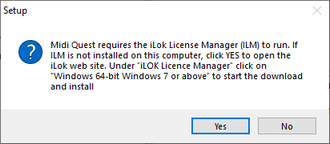
If it is not, press 'YES' and the browser will be open to the appropriate web page.
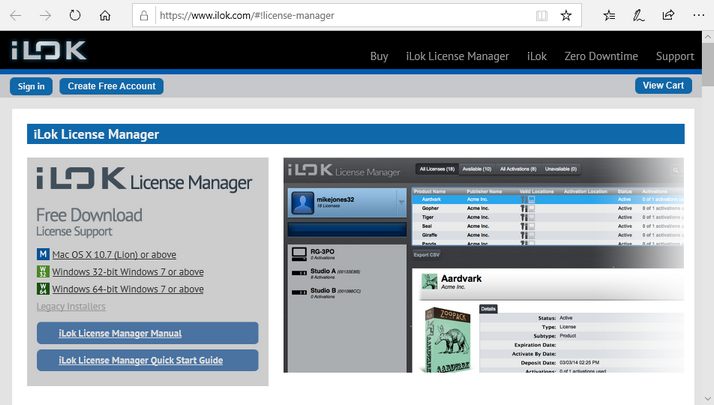
Download and install the appropriate version of the iLok License.
Congratulations you have now installed the Midi Quest program files
If an error was displayed during the installation process, please ensure that you have the appropriate version of .NET installed as described above.
Macintosh
Midi Quest for the Macintosh is installed using the standard Macintosh installer that you should be familiar with. Double click on the installer and follow the prompts to install the application.